Introduction
I’ve been doing a ton of work in Power Automate over the years for work, in order to have communication from Dynamics CRM to on Premise database or syncs as well as just automating things in CRM. The one issue I have with power automate is that it has a really low bar of entry, but then when you go try to do anything in the real world you need to know special tricks or more complex things to actual get things done.
Hopefully I can edit this post to add things that come up and I learn along the way that are harder to find than a quick google search.
Tricks
SQL Connector Composite Keys
When you go to use a Get row (V2) or Update row (V2) you get the following Prompt:
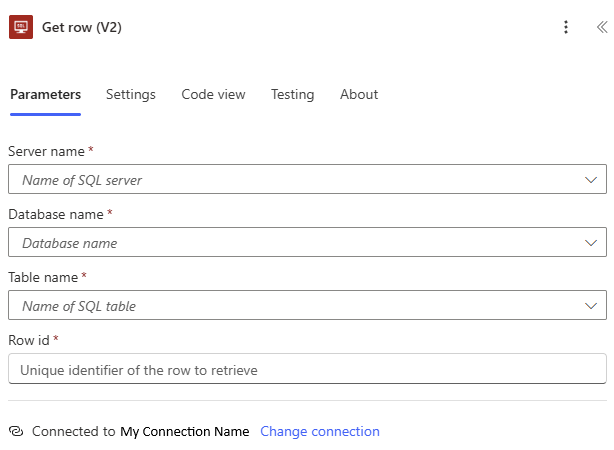
All the fields make sense; Row ID on a normal table, that has an auto-incremented INT column type, would just be a value like 123. However if you have a table with composite keys you simply need to provide all the key values in order of the keys separated by commas.
Example
Given the table
| Column Name | Data Type | Allow Nulls | |
|---|---|---|---|
| 🔑 | Category | varchar(3) | |
| 🔑 | AccountID | uniqueidentifier | |
| 🔑 | OrderNumber | int | |
| CRMID | uniqueidentifier | x |
If you wanted to call Update row (V2) it would look like the following, if you wanted to call get it would just not have the advanced parameters section:
| B1D,1E59FA56-1870-F111-AB0D-00224826C8EB,4856 |
| Showing 1 of 1 | ⌄ |
| 4D38EA6B-CC4B-467D-BDEE-9F9BC482569B | X |
If you are using dynamic parameters for the RowID you can simply use something like concat to join everything together and include the comma:
concat(triggerBody()?['text'],',',triggerBody()?['text_1'],',',triggerBody()?['number'])